Getting Started
Quick Sale Basics
The Top Menu
The top menu is located at the top right-hand side of the screen.
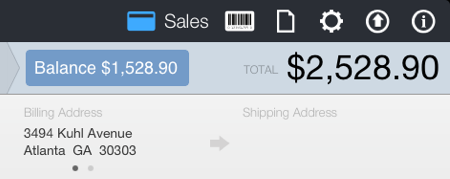
This menu allows you to switch to the Sales, Products, Reports, Settings and Backup screens by tapping on the corresponding icon.
| Menu option | Function |
|---|---|
| Credit card | Create invoices, estimates, quotes or estimates. |
| Barcode | Create or edit products. |
| Page | Generate or export sales reports. |
| Gear | Show app settings, customize company information, tax rates, customize the PDFs, emails and more. |
| Arrow with circle | Backup or restore a backup. |
| Info | Show the version of Quick Sale. |
Demo Company
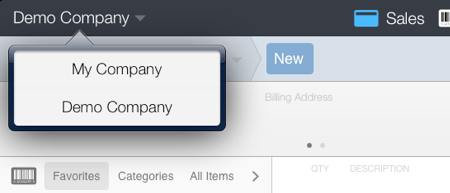
Quick Sale includes an additional Demo Company to help you learn and test Quick Sale.
An empty company named My Company is also included. Use this company to enter your company data.
To switch to My Company, tap the Demo Company name located at the top left-hand corner, then tap My Company.
Settings
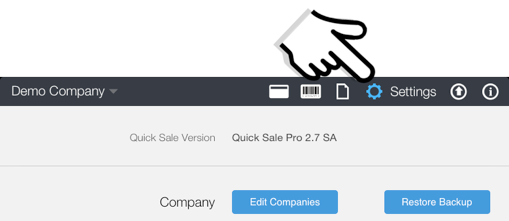
To configure your company information, such as company name, address, tax rates, customize the PDF documents, customize the emails and more, tap the gear button located at the top menu.
Please visit the Settings help section for specific instructions.