Creating New Items
In the Products screen, tap the New Item button.
-
In the Name field enter the name of the item that will appear on the sales documents (this field is required).
- For example, “Chair”, “Char Model 123”, “Repair”, etc.
-
In the ID field enter a unique identification code that will identify this item (this field is required). Make this code as short as possible.
- For example, “CHR1”, “CHR123023325-1” or “REP”
-
In the UPC/SKU field enter the number used in the barcode label, this is used when adding products with a barcode scanner (optional)
-
In the Description field enter the detailed description of the item (optional)
-
Tap the Item Type box and select one of the following:
- Inventory Item: Items that you want to keep track of the quantity on hand. Only inventory items adjust the “On Hand” quantity after a sale or return on the invoices, e.g., chairs, tables, guitars, etc.
- Non-Inventory Item: Items that you don’t need to keep track of the quantity on hand, e.g., coffee, tea, cables, etc.
- Service: Services and labor. e.g. Computer Repair, Installation.
- Charge: Charges and fees. e.g. Shipping & Handling, Late Fee.
- Description / Note: Use this item type to create notes that can be added to the sales documents. This item type will print only the name and description on the sales documents (no qty and price).
-
In the Price field enter the amount that you will charge for the item or service
-
In the Cost field enter the amount that you pay to purchase the item
-
In the MSRP field enter the “Manufacturer’s Suggested Retail Price” (optional)
-
If the item is taxable, enable the corresponding tax rate (Tax 1 or Tax 2)
-
In the On Hand field enter the stock quantity currently available (optional)
-
In the Minimum Qty field enter the minimum stock quantity. If this quantity is less than the current On Hand quantity then this item will be included in the “Reorder Report”
-
Item is Active, this option must be ON for all enabled items, if this setting is OFF then the item won’t be available in in the Sales section
-
The Categories box list the category or subcategory this item belongs to. An item can belong to more than one category. e.g. Furniture, Specials.
- To add this item to a new category, tap the (+) button located inside the categories box and then select the category.
-
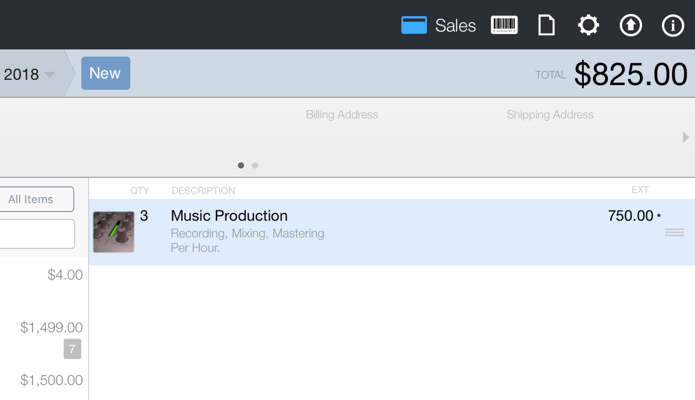
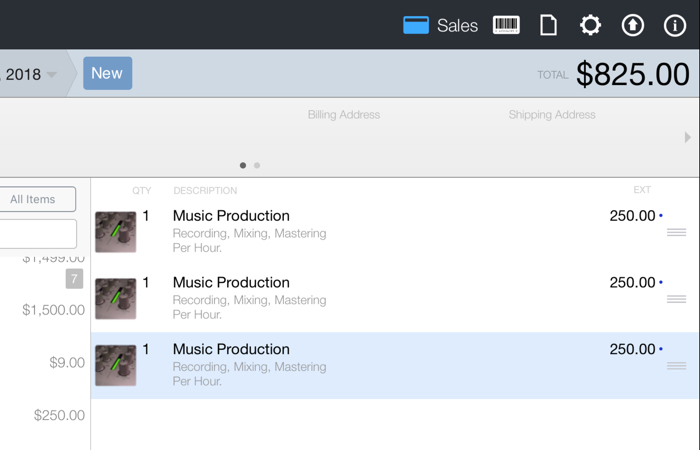
Group at Sale: Changes the behavior when multiple items are added to the sales document.
For example:
If Group at Sale is ON, adding the same item 3 time will show:
If Group at Sale is OFF, adding the same item 3 times will show:
Tap the Save button to create the new item or save the changes.