Importing Products or Inventory
Quick Sale has the ability to import CSV file to create or update the products. CSV files can be created or edited with any spreadsheet program such as Excel, Apple Numbers or the free LibreOffice suite.
The CSV file must contain the correct column names as specified in the CSV File Specification document available for download on this page. The order of the columns is not important, but the “ID” column must be included always.
Right click the following link to download the CSV File Specification in PDF format: Quick Sale CSV Format Specification PDF
To create the CSV file with an spreadsheet program:
-
On an empty sheet add the column names in row number 1
-
Add the item information starting from row number 2
-
Export the spreadsheet as CSV file:
- Excel: Click Save As… and change the Save as Type or Format field to CSV (Comma delimited)(*.csv) or Comma Separated Values (.csv).
- Apple Numbers or LibreOffice: Export as CSV file with text encoding Unicode (UTF-8).
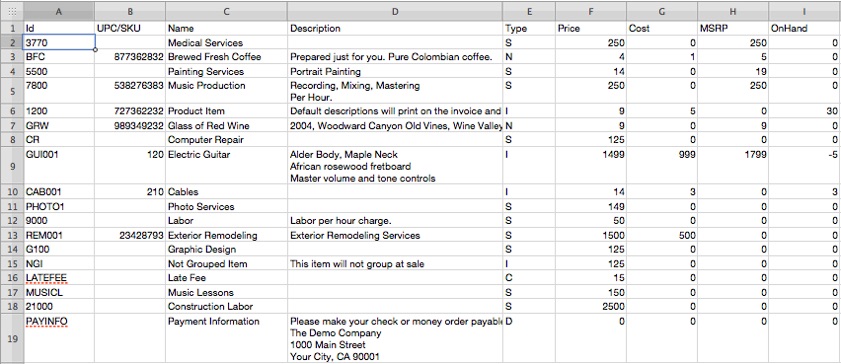
To transfer the CSV file to Quick Sale you can use email, Dropbox, iTunes, or any iPad compatible document sharing service installed on your iPad, e.g., OneDrive, GoogleDrive, Box, etc.
Transferring the CSV file to Quick Sale using Email:
- Email the CSV file as an attachment to the email account configured on the iPad
- Open the iPad’s Mail app and select the email containing the CSV file
- Hold you finger on the icon of the attached CSV file
- Tap Open in… then Quick Sale
- Quick Sale should open and a preview of the CSV file should appear
- Review the CSV file preview and then tap Import
Transferring the CSV file to Quick Sale using Dropbox:
Important: Before using this option, you must configure the default Dropbox Documents Folder in Quick Sale > Settings > Configure Dropbox. Quick Sale imports and exports the products from/to the default Dropbox Documents Folder you choose.
- On your computer copy the CSV file to the default Dropbox Documents folder
- On your iPad open Quick Sale
- Go to Products and tap Import/Export > Import Inventory > From Dropbox
- A file selector with the content of the Dropbox shared folder will appear
- Select the CSV file and then tap Select
- A preview of the CSV file to be imported will appear.
- Review the CSV file preview and tap Import
Transferring the CSV file using any iPad-compatible document sharing service, e.g. OneDrive, GoogleDrive, Box, etc.:
- Upload the CSV file to the document sharing service of your choice
- On your iPad open the official app provided by the sharing service
- Locate and select the CSV file and tap the share or export button
- Tap Open In… and then Quick Sale
- Quick Sale should open and show a preview of the CSV file to be imported
- Review the CSV file preview and then tap Import