Setting Up Your Company
The first time you open Quick Sale, it automatically opens the included Demo Company. This Demo Company is included to help you learn and test Quick Sale.
To setup your own company, you need to switch to the included company with name My Company which is an empty company already created for you.
Follow these steps to setup your company information and start working with Quick Sale.
Switch to the new company
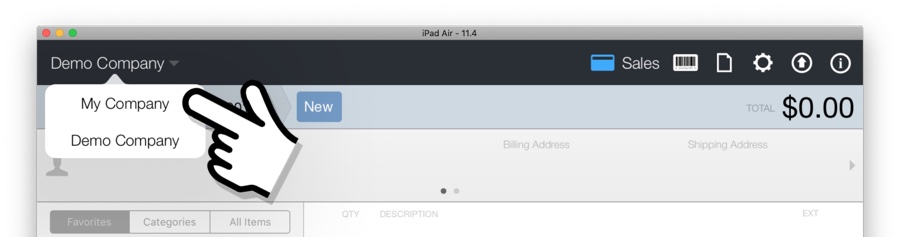
- Tap the company name located at the top left-hand corner.
- Choose My Company (or the new company name).
Change the company information
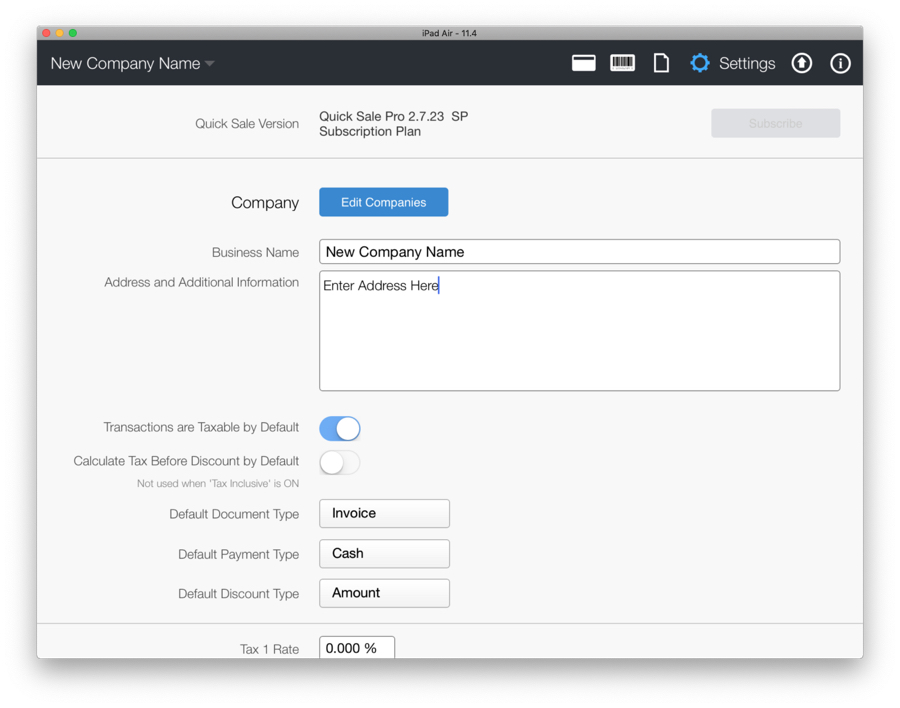
- Go to Settings: Tap the gear button located at the top menu.
- In the Business Name field enter your company name.
- In the Address and Additional Information field enter your company address and optionally other information such as contact phone number or email address.
- Adjust the tax rates and tax settings accordingly to your local tax rules. Please refer to the Taxes help section for more information.
Customize the PDF document
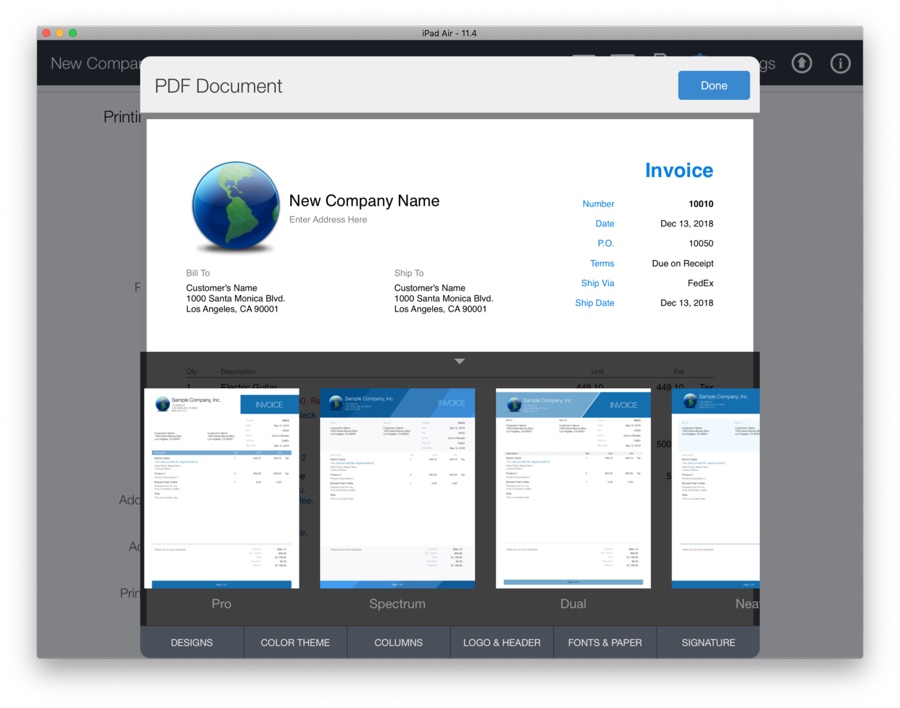
Quick Sale can email or print the sales documents (invoices, estimates, etc.) in PDF format. To add your own company logo and customize the PDF documents, go to Settings, then tap the Customize PDF button (under Printing & E-Mailing Defaults).
Please see the Settings help section for specific instructions.
Setup Products
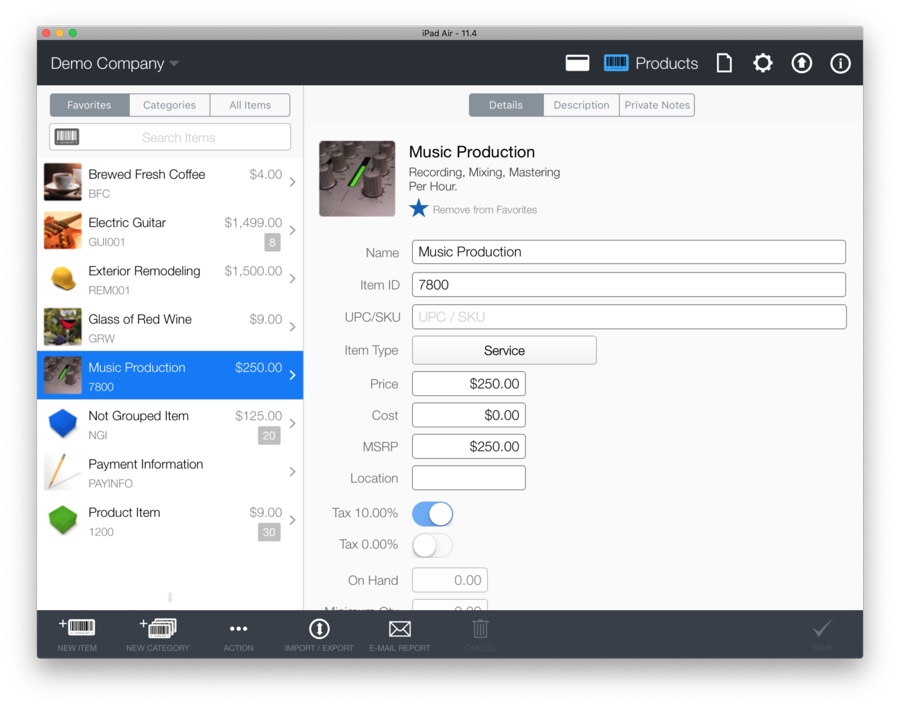
Next, you can setup your product and/or service items in the Products screen. Please visit the Products section for specific instructions.
After this is completed you are ready to start working with Quick Sale. Please visit the Sales section for instructions on how to create, email or print invoices, estimates.