Creating Invoices, Estimates, Quotes, Work Orders
Before creating a new sales document, you must create the list of items that you sell and/or the services that you offer. Please see the Products help page for instructions.
Quick Sale starts with a new and empty sales document (invoice, estimate, quote or work order) the first time it is opened and it is ready to be populated with products and customer information.
To create the sales document, select the type of sales document that you would like to create (if it‘s not already selected), enter the customer information (if needed) and then add the products.
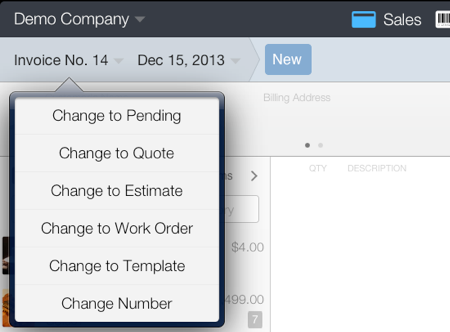
The document type selector indicates the type of document being created or edited:
Tap the document type selector to change the type of document that you would like to create, for example: Invoice, Quote, etc.
If the document selector already shows the document type that you want then you don’t need to change it.
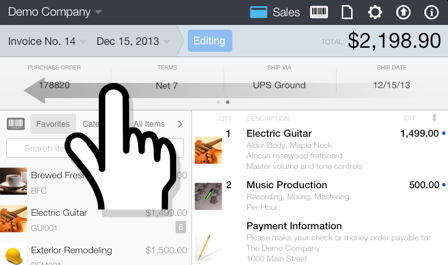
To see or enter the Purchase Order, Terms, Ship Via, and Ship Date fields, swipe from right to left on the customer’s name and address area.
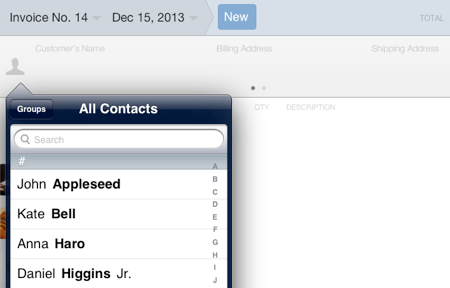
To add customer information (name, address, phone or email) from the iPad Contacts:
- Tap on the person icon (see image)
- Select a contact and the name will be added to the invoice
- To add the address, phone or email address tap on the corresponding field and it will be added to the sales document.
To enter manually the name or address tap on the Customer’s Name field, or Billing Address field on the screen and an editing box will appear.
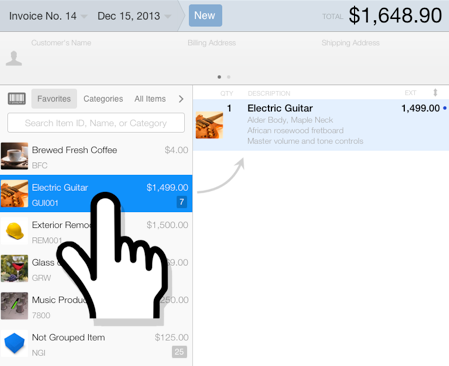
Tap the item from the product browser to add the item to the sales document.
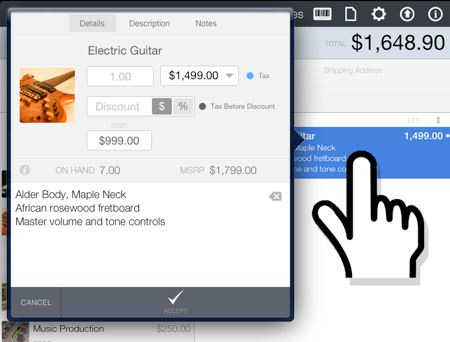
To edit a line item, tap the line item from the right column of the sales area. The line item box will appear to allow you to change the quantity, price, discount, taxable option and description.
Tap Accept to apply any changes made to the item.
To save the changes, tap the Save button located at the bottom right corner of the Sales screen. To record a full or partial payment, tap the Payment button, the document will be saved automatically.
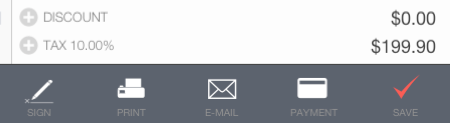
The Save button function will change to New.
To print the invoice tap the Print button.
To email the invoice tap the E-Mail button.
To capture the signature tap the Sign button.
If no additional modifications are needed then tap the New button to start a new empty document.